
Traditionally, organisations have relied on spreadsheets and eMails approvals to manage their CapEx approval process. However, the approach is inefficient and presents several challenges including approval delays, limited visibility, and poor governance.
Consequently, businesses are embracing technology solutions to automate the CapEx approval process.
In this blog, we explore how to automate capital expenditures with eCapEx.
Automate CapEx approval processes
This section is an overview of the functionality available in eCapEx to automate capital expenditure approval.
At this stage, it is important to say we will not discuss every possible feature. For example, the CapEx form is in English, but the platform can automatically translate the form into the user’s local language. Furthermore, you can configure other parameters, such as dates and times, to display them in localised formats or local time zones.
Similarly, the fields for information gathering are configurable to your organisation.

Figure 1 – Request for Approval Form
Finally, some organisations require an initial business case (see Figure 1) containing brief details (strategic fit, scope of work, risks, timescales, costs, etc.) of each proposed project to be submitted for commercial evaluation and prioritisation as part of the CapEx budgeting process.
While you can build a form to capture the initial business case (and manage budgets) in eCapEx, this blog focuses on the detailed business case, which is required when a business unit requisitions CapEx against the approved budget.
At this stage, a separate CapEx request is required for each individual project in accordance with the authority matrix. This capital expenditure request is more detailed than the initial business case and will include strategic justifications, financial projections, and risk assessments.
Okay, let’s start.
User interface
To log in to the eCapEx platform, you enter the URL and input your username and password. There is a link to reset your password if required.
Once logged on, the user interface will launch in the browser. Different levels of users within the system (initiators, approvers, managers, system administrators) will each have a web workspace tailored to their role. This is where the users can:
- Initiate capital expenditure requests
- View their task list
- Find the status of any in-progress request(s)
- Search for and review historic requests
- Configure and combine task lists, tabular data, and chart/graph widgets to display real-time metrics about their CapEx portfolio, such as status, cycle times, progress, and user/process performance.

Figure 2 – CapEx request form
Capital expenditure request
The first stage is to open a request form (See Figure 2) to gather information about the capital expenditure. The form may be based on your existing paper form or Excel spreadsheet, as it helps with user adoption by making the system familiar.
Allocated to each new request, a sequential reference number tracks the submission throughout the CapEx lifecycle.
First, the user selects the business unit from the drop-down and adds a title and a brief description. If, for example, you need to urgently fix a leaking roof, you can tick a box to prioritise the CapEx. You will also need to select a cost-centre/department/approver from a list provided.
Most fields are mandatory fields (e.g., marked with a red border), and you will not be able to submit a request if a mandatory field is empty. Likewise, you cannot submit a form if it contains invalid information, either because it does not meet your rules or real-time validation against external data sources has failed.
On the right of the form are the headline financial and workflow details. In the financials section, you can view the total budget for the period, budget used to date, and the remaining budget for the selected business unit and/or asset categories etc. An error message appears in the warning section if the CapEx request exceeds the remaining budget. The workflow area documents the initiator and current workflow step along with associated dates.
Depending on your requirements, horizontal and vertical tabs can break down the form into more logical and manageable sections. Common tab examples include:
Justification tab
The first tab asks for information about the request. For example, is the request for statutory or legal reasons, profit generation, or profit maintenance?
In this tab, you can select the priority level, specify the approving department, and include the CapEx category. You can also explain why you need the request and outline the reason for the request. This section also requires the initiator to input the age of the existing item to be replaced, along with photographs.
Quotations tab
Many clients include a quotations tab where you can add quotes from potential suppliers. In this tab, you can:
- Enter the supplier name
- Tick the box if they are the chosen supplier
- Explain why you did/did not choose this supplier
- Attach supporting files, e.g. quotes, warranty, T&C’s, etc.
You can add/remove rows (quotes) and explain how you selected the supplier. If you do not provide three quotes, it is mandatory to explain why this has not been possible.
If you have an approved vendor list, you can perform a lookup to validate that suppliers are registered/approved.
Cost breakdown tab
The third tab requires the CapEx initiator to provide a cost breakdown for each item, including quantities and unit prices.
Budget tab
When completing the budget tab, the originator can retrieve/look up budgeted items by clicking ‘Find CapEx code’ or entering the CapEx code. After selecting a budget item, the relevant code, description, and budget amount will be displayed.
Supporting documentation tab
The next section is the attachments tab, where initiators can upload documents and photographs.
Request submission
At any stage, the initiator can:
- Cancel the request
- Refresh
- Save and close
- Print a PDF of the CapEx
- Print a PDF of all attachments
After clicking ‘Save & close’ for the first time, the CapEx form will be saved, closed, and added to the initiator’s task list in the user interface. Subsequent opening of the same CapEx form from the task list will give the CapEx initiator the ability to refresh and “Save As,” rather than “Save and Close”.
On completion of the required information, the initiator can submit the request for approval.
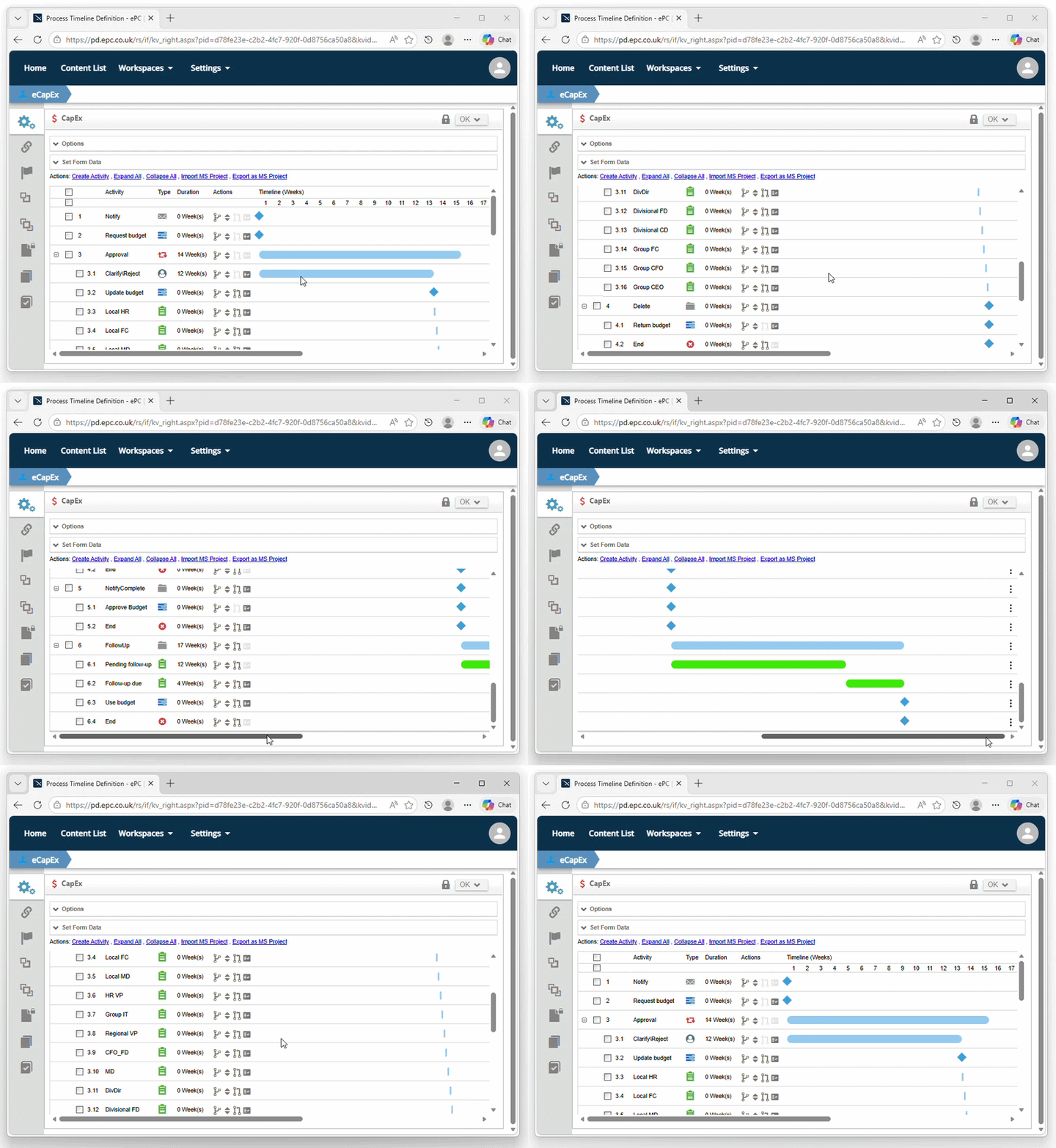
Figure 4 – Parallel approval workflow
Automated approval workflow
The next stage is routing the request to the correct approver through a bespoke approval, rejection, and clarification workflow based on the authorisation matrix (e.g., CapEx type, request value, approval hierarchy, business unit, budgets, and limits).
At any stage during the workflow, an approver can send the request back to the initiator to either reject it or request clarification.
Typically, each approver will have an authorisation limit, forcing the request to go higher up the hierarchy until a final approver has authorised the request. The asset category may also affect who needs to approve the request, with departmental users such as IT, H&S, or finance added if needed.
Some users may act only to recommend a request, rather than having final approval on the project. This means that their recommendation (or not) with notes is visible to high-level approvers, but they cannot make a final decision on their own.
eCapEx can run your approval workflow sequentially or in parallel (See Figure 4) to obtain approvals for each type of request. Unlike traditional linear workflows that chain steps together sequentially, parallel workflows enable users to work on requests simultaneously, vastly reducing the overall time to approval.

Figure 5 – Email notification
Email notifications
The system automatically alerts users to new tasks by sending them eMails with reminders/escalations based on inactivity and due dates (See Figure 5).
Common examples include receiving a notification:
- When you need to approve a request
- If an approver wants to clarify something with you
- If a CapEx request has been in your task list for a week (see image below)
- When a CapEx you have approved has received final approval for spending or is rejected
- Notifying all process participants when a workflow ends
You can approve the request via the system or by eMail. When logged in, the request will be in your Task list on your homepage, allowing you to open and review the request before selecting either Approve, Reject, or Clarify from the relevant tab.
If you are away from the office, you can reply to the eMail with the word Reject, Clarify, or Approve in the first line with an optional comment in the second line.

Figure 6 – User interface
Dashboards
We saw earlier that, once logged in, the system directs you to a user interface.
In addition to initiating CapEx requests, the user interfaces provide dashboards offering real-time visibility into key metrics presented in tabular and chart format.
Additionally, these configurable dashboards allow users to apply filters and generate custom reports based on requests by date, division, company, or type.
You could also create a ‘current position’ report, comparing the total ‘Budget’ for CapEx with the actual ‘Used’ (i.e., Requested/Approved) for each business unit, region, or globally (See Figure 6).
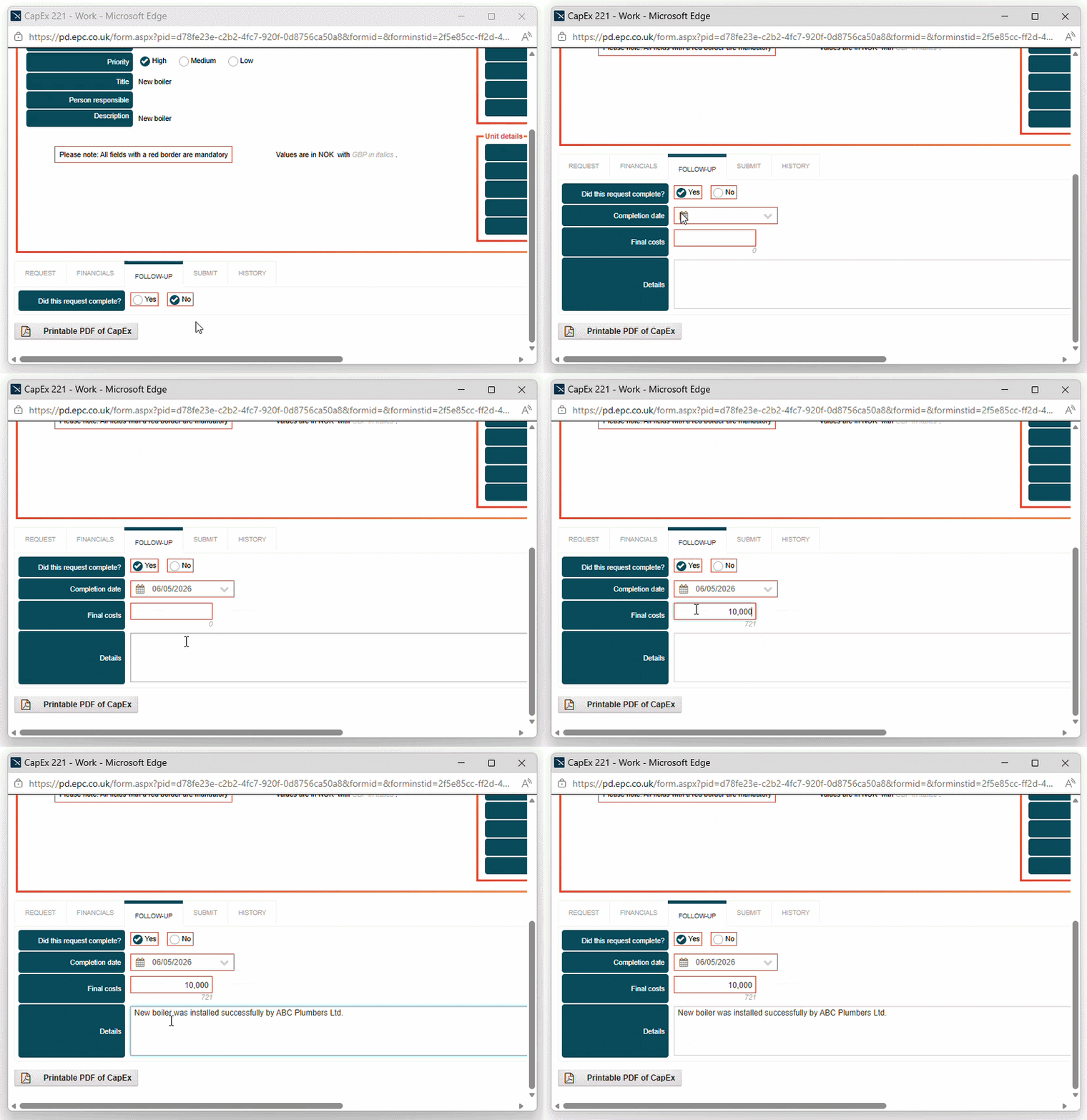
Figure 7 – Follow up tab on CapEx request form
Post-investment review
If a request is approved, the project will start (or the asset will be purchased) and subsequently be authorised for operational use.
However, the process is not yet complete.
One area – post-investment review – is often overlooked with organisations missing the opportunity to objectively assess outcomes and foster a culture of continuous improvement.
Organisations can integrate a PIR process into their CapEx lifecycle with eCapEx (See Figure 7).
Conclusion
The CapEx lifecycle includes several phases that enable organisations to manage their capital expenditure process.
eCapEx helps capital-intensive industries such as hospitality and manufacturing manage the complete CapEx lifecycle – from planning and budgeting to approval, tracking and post-investment review.
You can schedule a demo or call 03300 100 000 to discuss your requirements.